
The Artbutler NEXT Virtual Placement feature offers two ways to visualize artworks to scale:
- Place artworks in sample room images or your own photos to create realistic installation views
- Use augmented reality to view artworks to scale on a real wall and try out different placements

Artwork placed to scale in a photo of an art fair booth in Artbutler NEXT
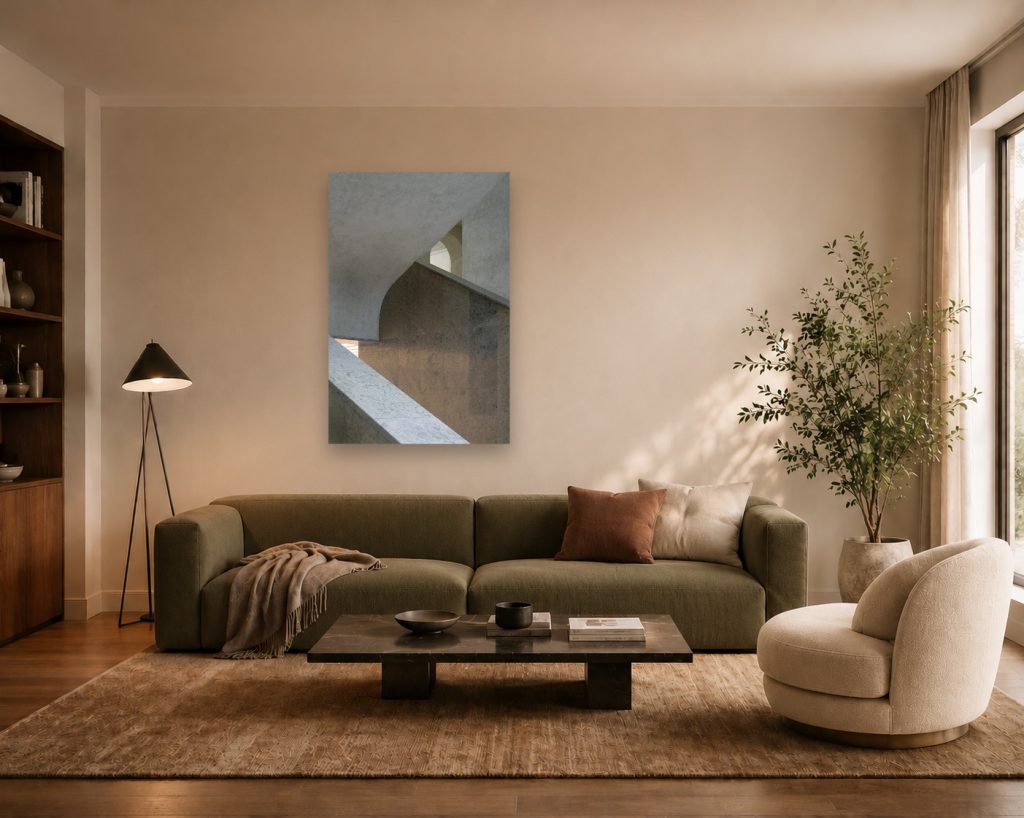
Artwork placed to scale in a photo of a living room in Artbutler NEXT
Create Installation Views as Additional Images
Use Cases
If you only have an image of the artwork, you can create an installation view in seconds and use it as an additional artwork image – without having to physically hang the piece in your gallery or at an art fair booth.
This gives your collectors a realistic sense of the artwork’s scale.
Video Tutorial in 61 Seconds
Step-by-Step Instructions
- Open the artwork in Artbutler NEXT.
- Click “Apply Action > Visualize Work in a Room Photo”.
- Choose one of the available photos or add your own photo and set its dimensions. To do this, mark a known width in your image and enter the corresponding measurement.
- Drag the artwork to the desired position.
- Click “Save as Additional Image” and, if you like, enter a name for your new installation view.
Showroom Feature for Room Photos
Use Cases
Collectors can use Virtual Placement directly in your Showroom to see how the artworks would look on their own walls and save the result to help with their purchasing decision.
Curators can use photos of galleries or museums to test different hanging arrangements.
Video Tutorial in 38 Seconds
Step-by-Step Instructions
In Artbutler NEXT: In the “Showroom Details”, enable the “Visualize Work in a Room Photo” option.
As a visitor/collector in the Showroom:
- Click “See in Room” for an artwork in the Showroom.
- Choose an existing photo or take a photo of the wall where you would like to place the artwork. Then mark a known width in the photo and enter the corresponding measurement.
- Drag the artwork to the desired position.
- Click “Download View” and use the realistic preview to make a more informed purchasing decision.
AR Feature for Virtual Placement in a Real Room
Use Cases
Use the camera on your smartphone or tablet to capture the actual wall in front of you and place artworks directly in the live camera view – no manual measurements required. Instantly try out different lighting conditions and positions.
Video Tutorial in 32 Seconds
Step-by-Step Instructions
In Artbutler NEXT: In the “Showroom Details”, enable the “View on Your Wall (Augmented Reality)” option.
As a visitor/collector in the Showroom:
- Click “View on Your Wall” next to an artwork.
- The artwork will initially be displayed in 3D. Click the “AR” button in the bottom-right corner.
- Point your camera at the wall where you would like to place the artwork and slowly move it across the entire area, paying particular attention to the edges of the wall.
- Once the camera has captured the entire wall and the dimensions of the room, the artwork will appear on the wall at the correct scale and can be positioned freely.
Activate Virtual Placement in your Artbutler NEXT account under: Subscription & Billing.